
Jump to GHIN App instructions
Steps to Reset Your Password for GHIN.com
-
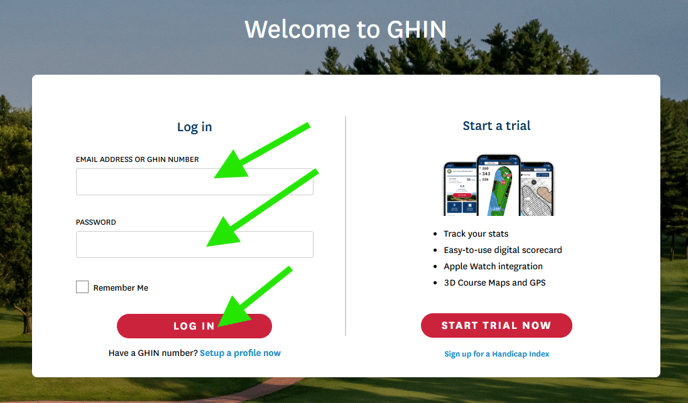
Go to the GHIN Website
- Open your browser and visit: GHIN.com
-
Enter your Email Address or GHIN number and Password
- You can put any values in these two fields
- Click Log In
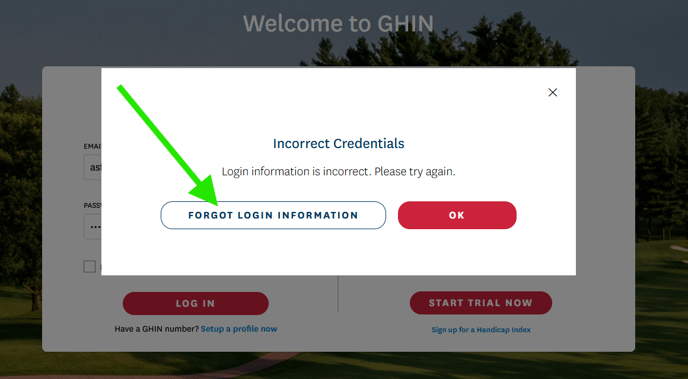
3. Select "Forgot Login Information?"
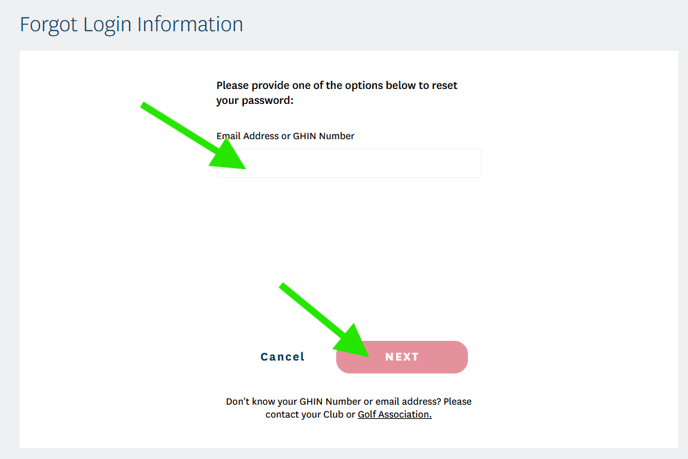
4. Enter Your Email or GHIN Number
-
-
- Input the email address associated with your GHIN account or your GHIN number.
- Click "Next".

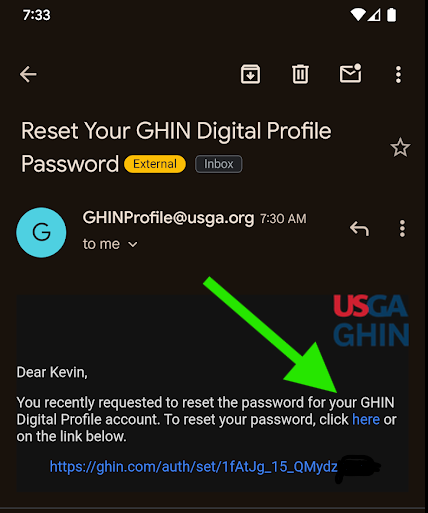
5. Check Your Email- You’ll receive a password reset email from no-reply@ghin.com.
- Open the email and tap the password reset link.
-
6. Create a New Password
-
-
- Enter your new password and confirm it.
- Click "Save" or "Submit".

7. Sign In with Your New Password
-
- Return to GHIN.com and log in using your new credentials.
-
Steps to Reset Your Password on the GHIN Mobile App
-
Open the GHIN App
- Launch the GHIN app on your mobile device.
-
Tap "Sign In"
- On the welcome screen, tap the "Sign In" button.
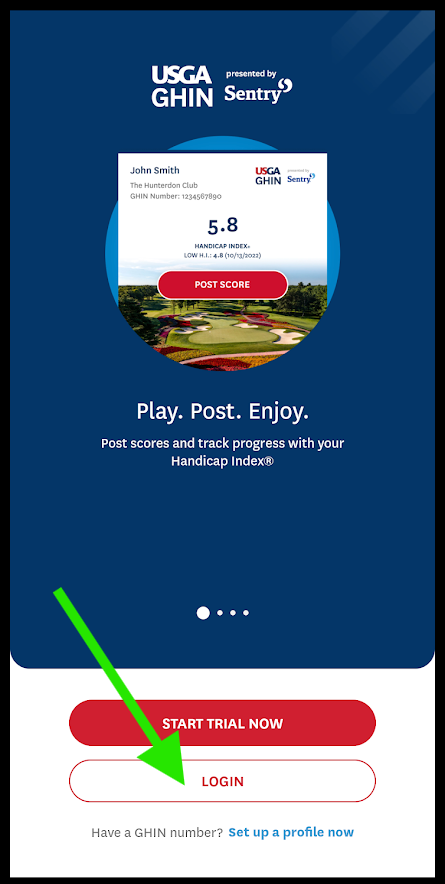
- On the welcome screen, tap the "Sign In" button.
-
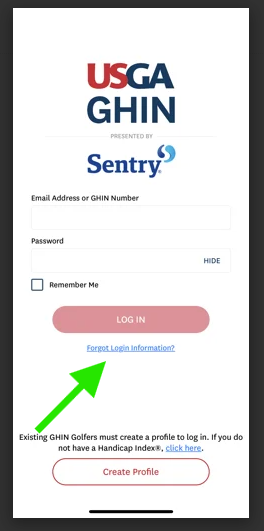
Select "Forgot Login Information?"
- Below the login fields, tap "Forgot Login Information?".
-
Enter Your Email or GHIN Number
- Input the email address associated with your GHIN account or your GHIN number.
- Tap "Next".

-
Check Your Email
- You’ll receive a password reset email from no-reply@ghin.com.
- Open the email and tap the password reset link.
-
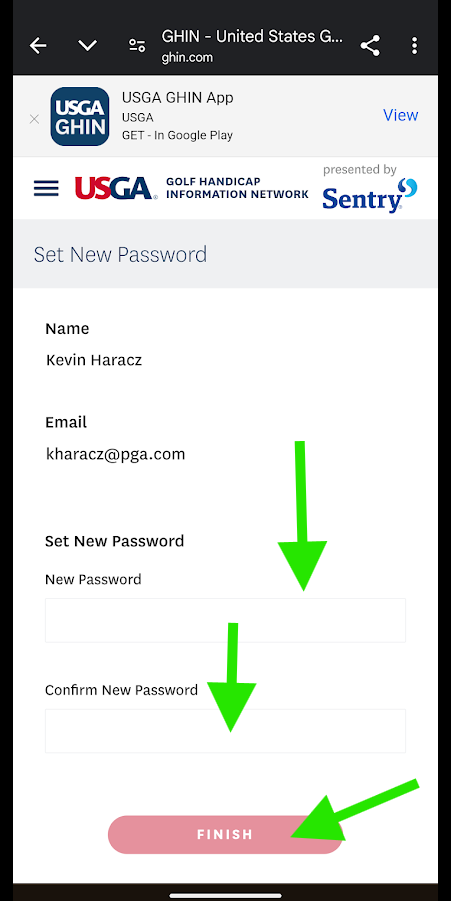
Create a New Password
- Enter your new password and confirm it.
- Tap "Save" or "Submit".
-
Return to the App and Log In
- Go back to the GHIN app and log in with your new password.
- Go back to the GHIN app and log in with your new password.